POD Catalog - Browse HIT Products
The POD Catalog provides thousands of preloaded products from HIT Promo that you can customize with your designs. Access the catalog directly from the main menu to browse, search, and configure products for your store.
Accessing the POD Catalog
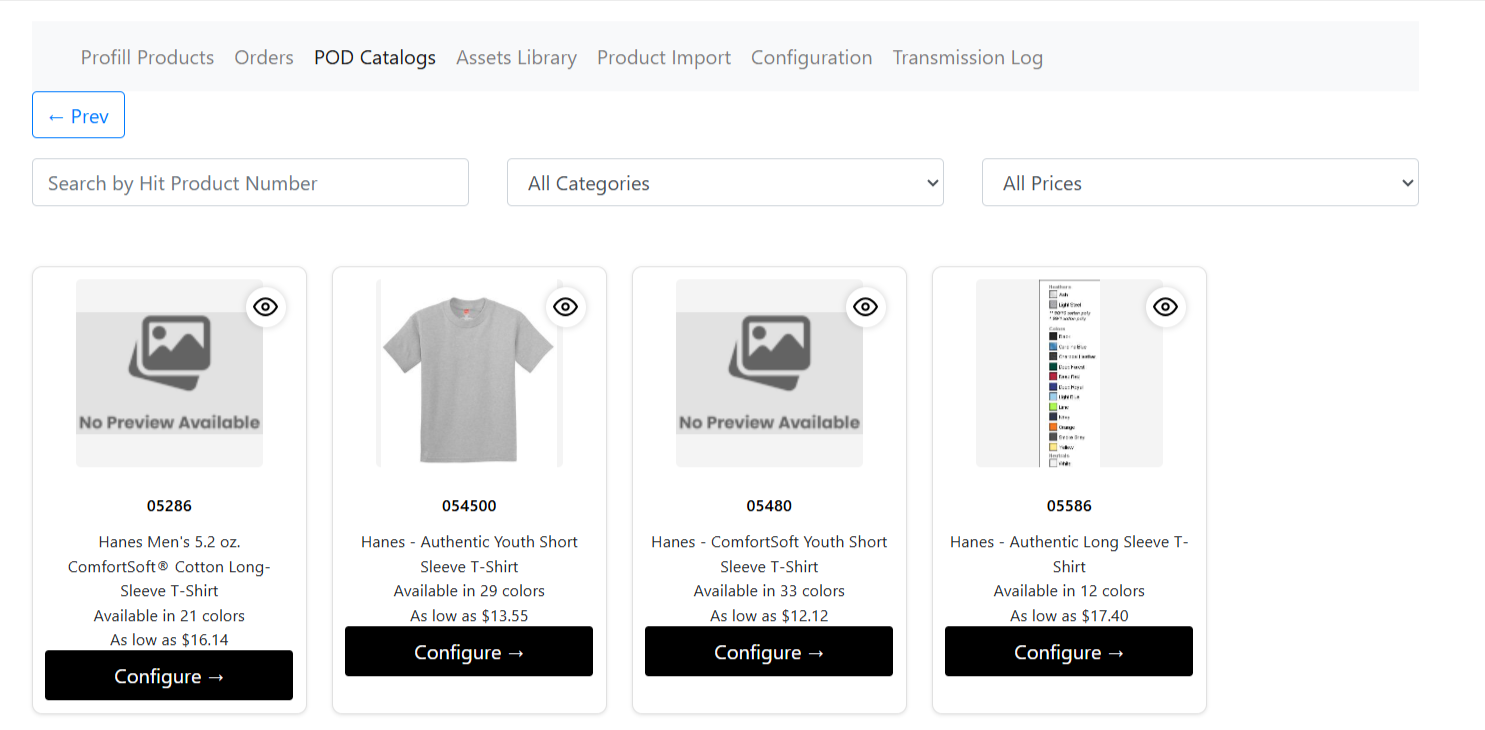
- Click "POD Catalogs" from the main app navigation menu
- Browse through HIT Promo products in a grid view
- Use search and filters to find specific products (see below)
- Click the "View" icon to preview product details
- Click "Configure" to start setting up a product
Browsing Tips
- Use the Category/Subcategory filters to narrow your product search quickly
- Products show available imprint areas, styles, and decoration locations
- Products show how many styles and colors are available
- Products show variants individually, including the size(s)
Product Information Display
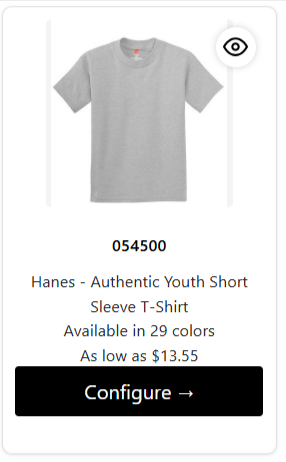
Each product card shows:
- Product Image: Main product photo
- Product ID: HIT Promo product number
- Product Title: Name and description
- Available Colors: Number of colors available
- Available Sizes: Size range available
- Categories: Product classification
Product Preview
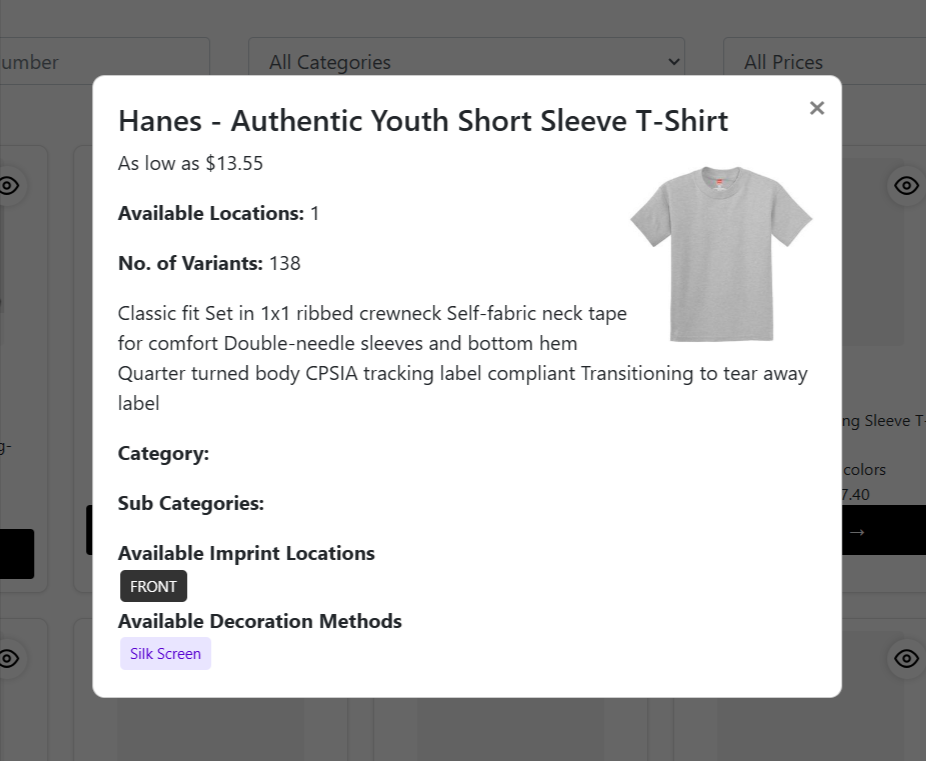
Click the View icon on any product to see:
- All Product Images: Multiple angles and colors
- Complete Color List: All available colors with names
- Size Information: Complete size range available
- Imprint Locations: Where you can add your design
- Decoration Options: Available customization options for each location
- Pricing Information: Cost per variant
Adding Missing Products
If a HIT Promo product isn't showing, you can add it manually:
- Click "Add Missing Product" button at the top
- Search for the HIT Product Number / Product ID
- Click "Add" to add to product catalog
- The product will be added to the catalog if it exists in HIT's system
Product Loading
- Products are loaded in batches of 40 for fast browsing
- Scroll down and click "Load More" to see additional products
- Use filters to reduce the total count for faster searching
- HIT syncs automatically. Newly added HIT products (images, colors, sizes, and pricing) become available automatically
After Clicking Configure
After clicking "Configure" on a product, you'll be taken to the product setup page where you can customize it and create it in your store.
Step 2: Select Colors and Sizes
Configure which colors and sizes you want to offer:
- Colors: Select which colors to make available for purchase
- Sizes: Choose specific sizes or select all applicable (some products can't use this)
- Share: Some share all applicable colors (some products can't use this)
- System automatically creates variants for each color/size combination
Step 3: Set Pricing
A base price table opens with pricing automatically:
- Selling Price: Your store's price (default: HIT cost + 30% markup)
- Edit selling price for each variant individually
- Selling price must always be > HIT cost (+ 30% markup)
Step 4: Creation Mode
Choose how you want to configure the product by clicking the option:
Activate – Quick Setup
- Enables "Create With Configuration" screen (simple, fast product)
- No artwork or imprint details required
- Product ready for orders right away
- Faster time to launch
Update – Full Configuration
- Checks "Create With Full Configuration" checkbox (detailed product)
- Configure control imprint locations
- Configure and set product details
- Product ready for orders right away
Step 5: Full Configuration (Setup If Enabled)
Click "Next" from Step 4 to proceed to Full Configuration. Additional setup options:
A. Select Imprint Locations
- Choose where you want designs printed (front, back, left chest, etc.)
- Select one or multiple locations
- Each location can have different configurations
B. Configure Decoration Options
For each location, select the customization type:
- Select the customization tool to use (e.g. Imagify-Design)
- Select the imprint method (e.g. Screen Print, Embroidery)
- When unlocked, imprint is design-only (no customer customization)
- When unlocked, imprint is design-only (no customer customization)
C. Configure Customization Options
Two options control customer customization capabilities (choose one of the three):
- Customization with Imagify-Design:
- Enables the Imagify-Design tool for this location
- Customers can fully customize the design using Imagify
- When unlocked, imprint is design-only (no customer customization)
- When unlocked, customers can customize using the Imagify tab
- Allow Only Asset Image for Customization:
- Customers can only select pre-approved Assets from Asset Library — Customization (images tab)
- Use for maintaining brand consistency
D. Add Variant Artwork Files
- 1. Hover over "No Artwork" button on a variant to show options
- 2. Check the "Add Art Files" to show any variant
- 3. Click the "No file" button to open Asset Library to show any variant
- 4. For each variant (card/item in a product), upload artwork from your library
- Left Sidebar: add or specify artwork showing which items have artwork
- Click this artwork to check if it is the correct variant
(only relevant for non-artwork variants)
- 5. For each color (all sizes of a color), you need art work:
- Asset Library creates a selection option — uploaded artwork only
- Click "Add File" button, select art, and confirm
- Optionally add additional artwork per variant and per location
- For per-variant art, select or upload artwork from your library
- 6. Switch between variants using the sidebar on the right
E. Add Location Artwork Files
- 1. Hover over "No file" button on the location to open for each location
- 2. Click the "Add File" to show to open Asset Library
- 3. Select mockup image showing design placement
- 4. Repeat this process for each location
F. Configure Product Customization
Below the artwork table, there are per-location controls:
- Decoration Method: Select imprint method (Embroidery, Screen Print, etc.)
- Description: Provide detailed decoration description for Profill
- Design name: Provide a design name to identify your design
- Feature (per-color):
- Automatically checked when design application ("global customization is enabled)
- Enables Imagify design tool for this color/location
- When unchecked, Customers can customize this specific location
- When unprotected, location is locked (design-only)
- Enabled (on by default):
- Automatically enabled with Imagify-Design applied (only checks "globally")
- When checked, Customers can customize this specific location
- When unchecked, location is locked (design only)
- Description: Artwork description to identify what you want designed
- Upload image: Product information for the artwork and location
- "Upload a image to enable customization" — If no image
- Required for enabling "Enable Product Customization Tool" to work
- Imprint Colors (optional): Enter colors for your imprint (comma separated)
- Imprint Image: Maximum 4 colors allowed per imprint
- Artwork lock:
- Maximum 4 colors allowed per imprint
- Supports color codes (e.g., #FF0000) or color names
- Make Art Public for Group Support: Customers can share designs across group orders
Step 6: Configure Imprint Locations (at least 1 required)
In this section, you'll configure the artwork for each imprint location:
Configure Artwork Variables
Below the artwork table will show per-location controls for each location:
- Decoration Method: Select imprint method (Embroidery, Screen Print, etc.)
- Upload image: Upload a mockup / product design for this location
- Select from Asset Library showing design placement
- A minimum size of artwork is required for some formats
- Feature (per-color):
- Automatically checks when customization is enabled (only checks "globally")
- Customers can customize this location's design globally
- Use for maintaining consistency across the whole product
- Import Colors: Enter colors for your imprint (comma separated)
- Maximum 4 colors allowed per imprint
- Supports color codes or color names
- Make Art Public for Group Support: Customers can share designs across group orders
Color validation: If you add artwork for one size of a color, you MUST add artwork for ALL sizes of that color. The system will prevent submission if this rule is violated.
G. Configure Product Customization
Below the artwork table, there are per-location controls:
- Decoration Method: Select imprint method (Screen Print 1 location)
- Upload image: Product image for the artwork and location
- Enable Customization Tool: Per-location control
- Automatically disabled until global customization is enabled and image is uploaded
- Check to allow customers to customize this specific location
- Uncheck to lock the location (design-only)
- Description: Artwork description to identify design intent
- Make Art Public for Group Support: Customers can share designs across group orders
Step 7: Create Product
At the bottom of the configuration page, click:
- "Create Product in The Store" — Creates a basic product
- "Create Product with Configuration" — Creates product and sends to Profill
After Product Creation
Once created, you'll see a success banner with links to:
- View Bigcommerce Product: Opens the product in your store admin
- Configure: Takes you back to configure with more settings
Important Notes
- Deals with Grow feature limitations based on plan/tier and which feature filters apply
- A minimum (required) decoration and location is needed for full configuration setup
- HIT Promo availability: product availability may change based on stock and HIT catalog updates — always verify product details
- Artwork customization connected to your location (at least 1 image required) — per all variants of this color
- Customer customization requires your Product Customization Tool to be compatible with your Bigcommerce theme
Pro Tips
- Start with one design and test before creating multiple product variations
- Use filter features in the catalog to quickly find specific product types and sizes
- Add clear artwork names and descriptions in HIT catalog to help you make your designs
- Use the HIT catalog as a reference to create and configure your designs for all variants
- Consider customization constraints: note your location (at least 1 image required) per all variants of the same color